Windows print program
Install and use the FreeReport Windows print program for silent printing without the print dialog: site permission, settings, updates and the agent API.
Browsers always show a print dialog and cannot pick the printer, copies, duplex or tray, or keep a print log. Where the same printer is used all day (service counters, hospitals, shops, offices that print payslips or certificates), install the FreeReport Print Agent on those PCs only: a small signed tray program that prints the report straight to a chosen printer at 100% scale. Other PCs keep printing through the browser and need nothing installed.
Download the Windows print program Windows 10 (1809 or later) / 11, x64 · no administrator rights or .NET needed · always the latest version
1. Install
- Run FreeReportAgentSetup.exe and follow the installer. It installs for the current Windows user only, so no administrator password is asked. Windows shows the publisher as Second Korea Co., Ltd.
- When it finishes, a printer icon appears in the notification area at the bottom right (it may be under the ^ arrow). From then on the program starts by itself whenever you sign in to Windows.
- If the icon is gone (for example after choosing Exit), start "FreeReport Print Agent" from the Start menu.
To install on many PCs at once, run the installer silently from a deployment tool or logon script. To remove it, use Windows Settings > Apps > "FreeReport Print Agent"; the allowed sites and the print log in %APPDATA%\FreeReport are kept as an audit record.
:: Install for the current user without any window (deployment tools, logon scripts)
FreeReportAgentSetup.exe /VERYSILENT /SUPPRESSMSGBOXES

:: Remove
"%LOCALAPPDATA%\Programs\FreeReport Agent\unins000.exe" /VERYSILENT
2. Allow a site (first print only)
The first time a web page prints through the program, a small window asks "Allow this site to print directly?" and shows the site address. Press Allow: from then on that site prints without asking, and any other site must be allowed separately. No answer within 60 seconds counts as Deny. http (unencrypted) sites get a warning, so check that the address is your intranet.
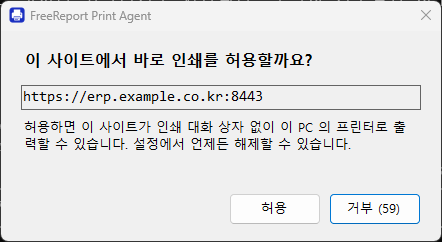
Chrome and Edge may ask once whether the site may access other apps and services on this device. Allow it: the program accepts connections only from this PC (127.0.0.1). Administrators can pre-allow sites with the LocalNetworkAccessAllowedForUrls policy.
3. Tray menu and settings
Right-click the tray icon for the version, Settings, Allowed sites, Print log, About and updates, and Exit; double-click opens the allowed sites. The settings window has four tabs:
| Tab | What it shows | |
|---|---|---|
허용된 사이트 / Allowed sites | tab | Sites allowed to print without a dialog, when they were allowed and last used. Select one and remove it to revoke. |
인쇄 기록 / Print log | tab | Every print: time, site, report, printer, copies, pages, user and result. "Open log file" opens print-log.jsonl. |
설정 / Settings | tab | Default printer (used when the site names none), start with Windows, and always refuse virtual printers (PDF, XPS, fax) so output cannot be saved as a file. |
정보 / About | tab | Current and latest version, automatic updates on/off, Check now, the last check result, the local address and the settings folder. |
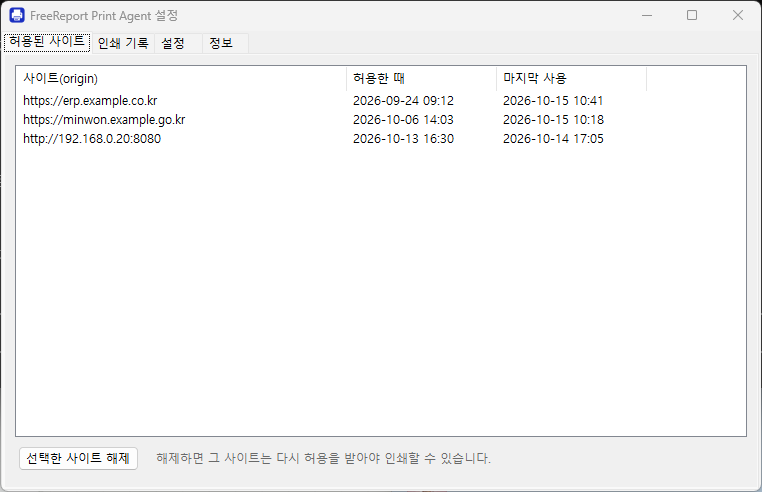
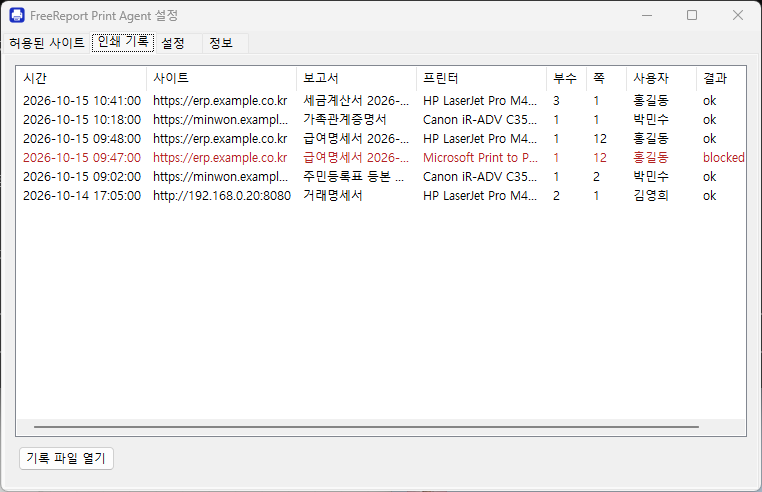
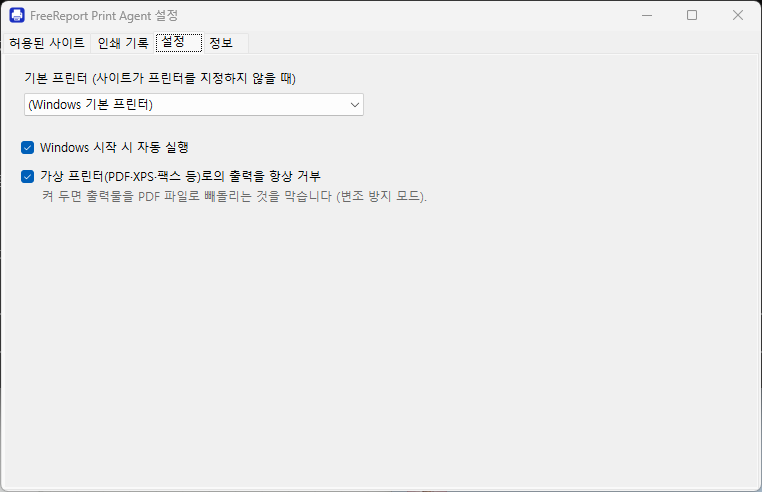
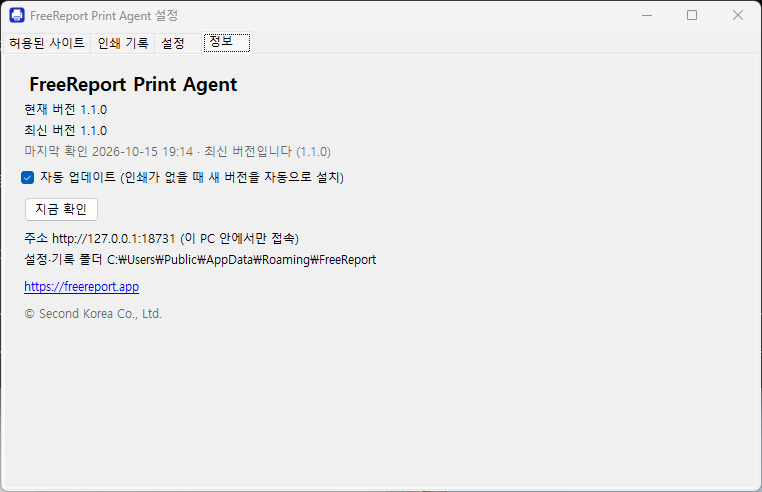
The program's screens are in Korean. Sample data shown.
4. Updates
The program checks for a new version 30 seconds after it starts and every 6 hours. When nothing is printing it shows a notice, installs the update quietly and restarts; allowed sites, settings and the print log stay as they were. An update is installed only when its size, SHA-256 hash and code signature (Second Korea Co., Ltd.) all match. To control updates yourself, turn automatic updates off in Settings > About and use "Install update" in the tray menu. Version 1.0.0 has no updater, so install the latest version over it once. Version history
5. Printing from your web page
In your page, check whether the program is running. If it is, make the report a PDF and send it; otherwise fall back to browser printing. The program prints at the real paper size (a 100 mm line in an A4 PDF is 100 mm on paper), turns landscape pages automatically and picks the paper that matches each page.
import { agent, createReport } from '@freereportjs/core';

const report = createReport(definition, { rows });
const status = await agent.detect();            // null: not installed or not running
if (status) {
  const pdf = await report.toPdf();             // null when onOutput cancelled it
  if (pdf) await agent.print(pdf, {                   // first time: the program asks the user to allow this site
    printer: 'Samsung M2020 Series',            // omit: the program's default printer
    copies: 2, duplex: 'long',
    report: '급여명세서 2026-10', user: '홍길동',  // written to the print log
    blockVirtual: true,                         // refuse PDF/XPS printers
  });
} else {
  await report.print();                         // no program: browser print dialog
}| Name | Type | Description |
|---|---|---|
agent.detect() | Promise<AgentStatus | null> | null when the program is not installed or not running; otherwise version, paired, updateAvailable, latestVersion, outdated. |
agent.printers() | Promise<AgentPrinter[]> | Installed printers: name, isDefault, isVirtual, paperSizes, trays, duplex, color. |
agent.print(pdf, options?) | Promise<AgentPrintResult> | Print a PDF (Blob, Uint8Array or ArrayBuffer) at 100% scale. Options: printer, copies, duplex, paper, tray, color, jobName, report, user, blockVirtual, dpi. |
agent.job(id) | Promise<AgentJob> | Job status: printing, spooled or failed. |
agent.logs(limit?) | Promise<AgentLogEntry[]> | This site's recent print log, newest first. |
agent.pair() | Promise<boolean> | Ask the user to allow this site. The functions above call it when needed. |
agent.forget() | void | Delete this browser's token for the program. |
Failures throw an AgentError whose code is one of these:
| code | Meaning | |
|---|---|---|
not_running | AgentError | The program is not running: start it from the Start menu, or fall back to browser printing. |
denied | AgentError | The user pressed Deny or did not answer within 60 seconds. The site is not asked again for one minute. |
printer_not_found | AgentError | No printer with that name. Use a name from agent.printers(). |
virtual_printer_blocked | AgentError | A PDF/XPS/fax printer was refused (blockVirtual or the settings option). |
paper_not_supported | AgentError | The printer does not have the requested paper size. |
updating | AgentError | The program is installing an update; try again in a few seconds. |
Security: the program accepts connections only from this PC (127.0.0.1), every site needs the user's permission and gets its own token, a site sees only its own print log, and the program runs with normal user rights. The Windows program comes with the license plan at twice the company price. Pricing